A SQLite explorer for your microVM
Browse and query SQLite databases in your microVM. Built into nibrun, with dashboard and CLI access.
View markdownnibrun now includes a SQLite explorer for your app's microVM. Browse tables, inspect rows, follow foreign keys and run SQL against the database your app is using.
It works out of the box with new deployments. Keep your SQLite database in the persistent
data/ directory, and nibrun provides the explorer and connection. Your binary keeps
opening the file as usual; it doesn't need an admin interface or a query endpoint.
You can use the dashboard or the nib CLI. An AI agent with access to your signed-in CLI
can inspect the same database too.
Browse tables and run SQL
Open a table to see its columns and browse its rows, with pagination for larger tables. Open a row to inspect its values, copy an individual field or copy the whole row as JSON.
For supported single-column foreign keys, View row opens the referenced record in
another result tab. You can follow an order's user_id to the user it belongs to while
keeping the order open.
The SQL editor lets you query across tables or aggregate the data. For a notebook app, you might check which tags are used most often:
SELECT tag, COUNT(*) AS notes
FROM note_tags
GROUP BY tag
ORDER BY notes DESC;
The interface uses LibreDB Studio, with nibrun's styles and added foreign-key navigation. The header shows the app name and database path; Back to app returns to the app overview.
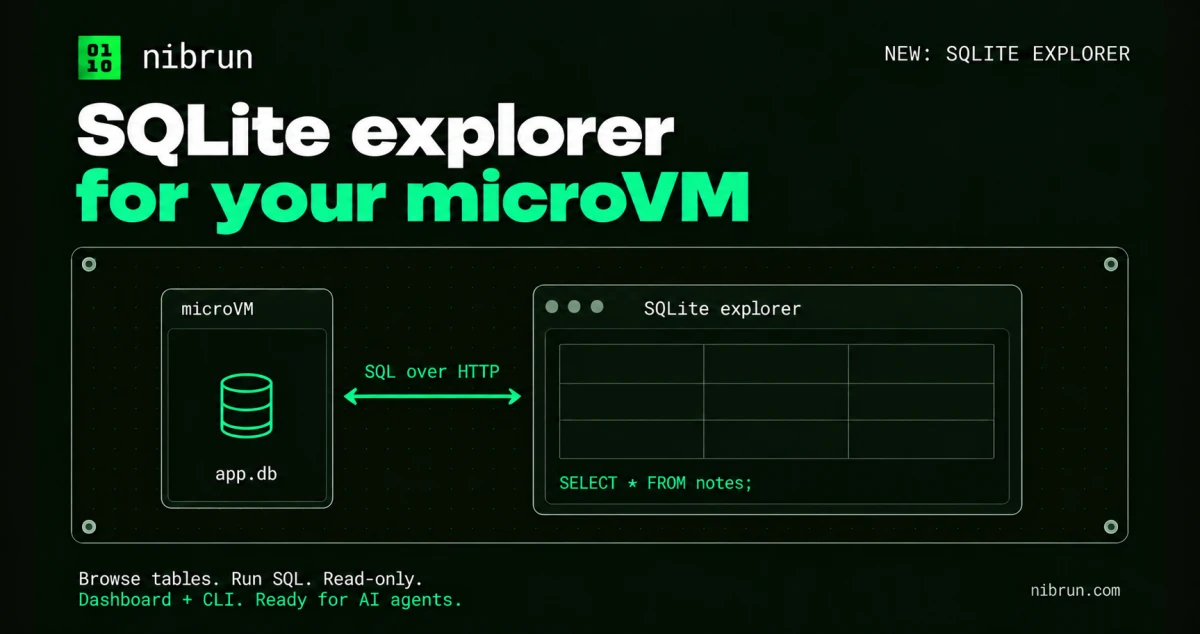
SQL over HTTP
The connection uses SQL over HTTP. The dashboard
sends queries to nibrun's API, which relays them to SQLite inside your microVM and returns
the results. The database file stays in data/, so you query the live data without exporting
or downloading a copy.
The browser client is @libsql/client, using
libSQL's Hrana HTTP v2 protocol.
Your dashboard session authenticates the connection; there is no separate database password
to create.
Explorer connections are read-only. INSERT, UPDATE, DELETE and schema changes fail
with SQLite's own error. Your app can continue writing to the database normally.
Open a database
Open your app's Files tab. Files with extensions such as .db or .sqlite have a database
icon and are already links. Click the filename to open the explorer in a new tab, or choose
Open SQLite database from its three-dot menu.
For other filenames, choose Query as SQLite from the file menu. nibrun checks that it can open the file as a SQLite database and saves the connection. The file then gets a database icon and becomes a link you can return to later. If it can't be opened, the explorer shows the error, and the file list shows an error you can click to inspect.
CLI and AI agents
Use nib apps sqlite to find the commands for listing connections, connecting to a database
file and running SQL. The CLI queries the same live database over HTTP, with the same
read-only access. Use --json for structured results in scripts.
An AI agent with access to your signed-in CLI can inspect the schema and query the data using those commands. Give it the nibrun skill for the workflow.
Older deployment returning a 502? Suspend the app, wait for Suspended, then resume it to pick up SQLite support. This briefly takes the app offline; its binary and
data/stay intact. Once it's running again, retry opening the database.
Open your apps and pick a database.